Mastering OpenClaw Skills: The Complete Guide
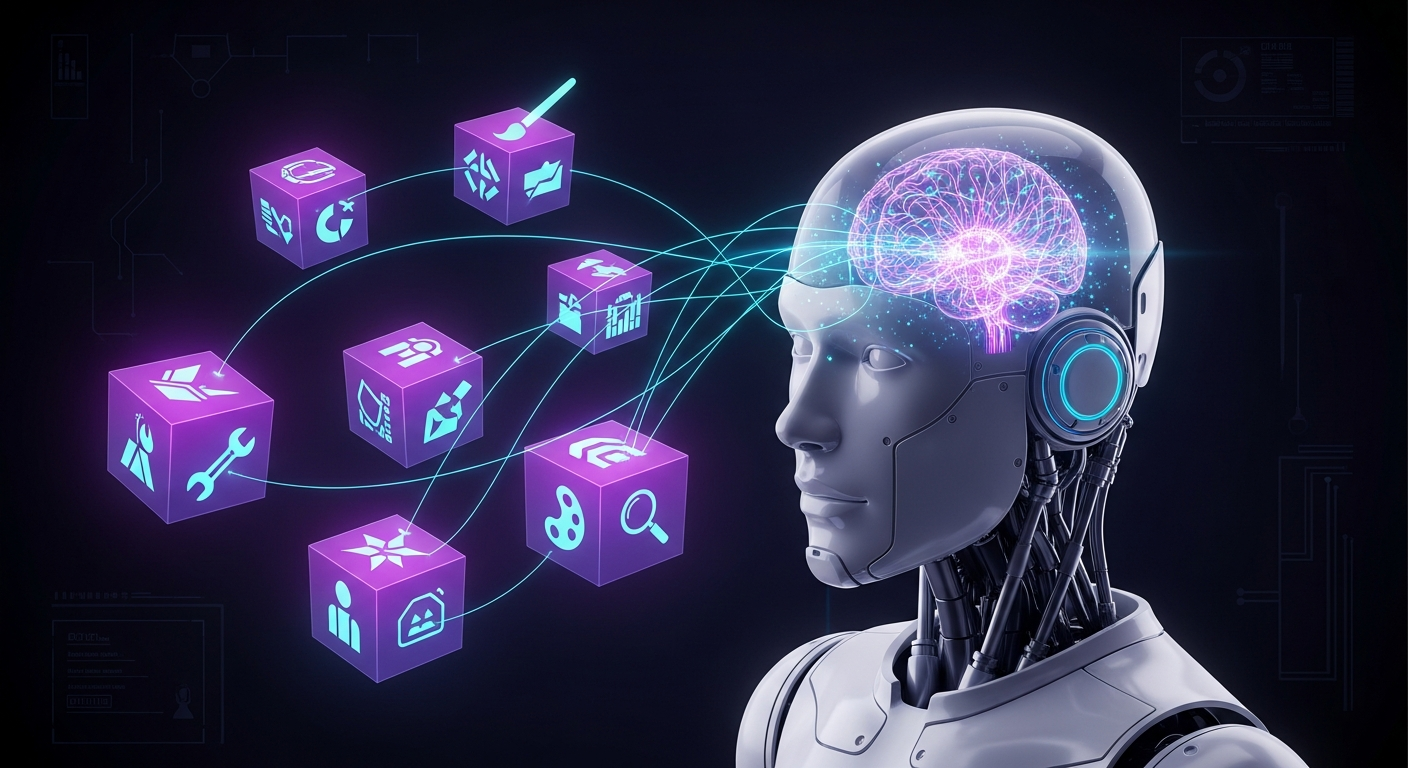
OpenClaw agents are powerful out of the box, but the real magic happens when you extend them with Skills. Skills are modular packages that teach your agent how to use new tools, access APIs, and perform specialized tasks. Think of them as "superpowers" you can add to your agent.
In this guide, you'll learn everything you need to know about OpenClaw Skills — from browsing the registry to installing skills, configuring them, and even asking your agent to download new skills on-the-fly.
What Are Skills?
Skills are self-contained folders that extend your agent's capabilities. Each skill contains:
- SKILL.md — Instructions and documentation the agent reads
- Scripts — Executable code for deterministic tasks
- References — Domain knowledge and documentation
- Assets — Templates, images, and other resources
When a skill is loaded, OpenClaw injects its instructions into the agent's context, teaching it how to use the new capability.
Example Skills
Here are some popular skills available today:
| Skill | What It Does |
|---|---|
weather |
Get current weather and forecasts |
github |
Manage repos, PRs, and issues |
spotify-player |
Control Spotify playback |
notion |
Read and write Notion pages |
discord |
Send messages and manage servers |
openai-image-gen |
Generate images with DALL-E |
summarize |
Summarize long documents |
tmux |
Control terminal sessions remotely |
Where Skills Live
OpenClaw loads skills from three locations (in order of precedence):
- Workspace skills (
<workspace>/skills/) — Highest priority, per-agent - Managed skills (
~/.openclaw/skills/) — Shared across all agents - Bundled skills — Shipped with OpenClaw itself
If the same skill name exists in multiple locations, workspace wins.
Discovering Skills with ClawdHub
ClawdHub is the public registry for OpenClaw skills. Browse it at clawdhub.com or use the CLI.
Install the ClawdHub CLI
npm install -g clawdhub
Search for Skills
Find skills by describing what you need:
clawdhub search "calendar management"
clawdhub search "send emails"
clawdhub search "postgres database"
The search uses semantic matching, so you can describe what you want in natural language.
Browse Online
Visit clawdhub.com to:
- Browse all available skills
- Read documentation and reviews
- See version history and changelogs
- Star your favorites
Installing Skills
Method 1: ClawdHub CLI (Recommended)
The easiest way to install a skill:
# Navigate to your OpenClaw workspace
cd ~/.openclaw/workspace

# Install a skill
clawdhub install weather

# Install a specific version
clawdhub install weather --version 1.2.0

# Force reinstall (overwrite existing)
clawdhub install weather --force
Method 2: Ask Your Agent
This is the coolest part — you can ask your agent to install skills for you:
You: "Install the weather skill so you can check forecasts"
Agent: "I'll install the weather skill for you..."
Your agent can:
- Search ClawdHub for skills
- Download and install them
- Configure any required API keys
- Start using them immediately
Method 3: Manual Installation
Download from ClawdHub and extract to your skills folder:
# Download the skill
curl -O https://clawdhub.com/skills/weather/latest.zip

# Extract to workspace skills
unzip latest.zip -d ~/.openclaw/workspace/skills/
Checking Installed Skills
Using the CLI
# List all available skills
openclaw skills list

# List only eligible (ready to use) skills
openclaw skills list --eligible

# Get info about a specific skill
openclaw skills info weather

# Check requirements for all skills
openclaw skills check
Ask Your Agent
You: "What skills do you have installed?"
You: "Which skills are ready to use?"
You: "Do you have a skill for managing calendar events?"
Skill Requirements and Gating
Skills can have requirements that must be met before they're eligible:
Binary Requirements
Some skills need command-line tools installed:
# This skill needs 'ffmpeg' on PATH
metadata: {"openclaw":{"requires":{"bins":["ffmpeg"]}}}
Install the required binary, then the skill becomes eligible.
Environment Variables
Skills often need API keys:
# This skill needs a Spotify API key
metadata: {"openclaw":{"requires":{"env":["SPOTIFY_CLIENT_ID"]}}}
Config Requirements
Some skills require specific OpenClaw configuration:
# This skill needs browser automation enabled
metadata: {"openclaw":{"requires":{"config":["browser.enabled"]}}}
Configuring Skills
Configure skills in ~/.openclaw/openclaw.json:
{
  "skills": {
    "entries": {
      "weather": {
        "enabled": true
      },
      "spotify-player": {
        "enabled": true,
        "apiKey": "your-spotify-client-id",
        "env": {
          "SPOTIFY_CLIENT_SECRET": "your-secret"
        }
      },
      "openai-image-gen": {
        "enabled": true,
        "apiKey": "sk-..."
      }
    }
  }
}
Configuration Options
| Key | Description |
|---|---|
enabled |
true or false to enable/disable |
apiKey |
Primary API key (mapped to skill's primaryEnv) |
env |
Additional environment variables |
config |
Custom skill-specific settings |
Asking Your Agent to Download Skills
One of OpenClaw's most powerful features is agent-driven skill installation. Your agent can autonomously find and install skills it needs.
Example Conversations
Finding a skill:
You: "I need you to be able to check the weather"
Agent: "I'll search ClawdHub for weather-related skills..."
Agent: "Found 'weather' skill. Installing now..."
Agent: "Done! I can now check weather forecasts. Want me to check the weather somewhere?"
Installing with requirements:
You: "Get a skill for generating images"
Agent: "I found 'openai-image-gen' which uses DALL-E.
        It requires an OpenAI API key. Do you have one?"
You: "Yes, use sk-abc123..."
Agent: "Configured! I can now generate images for you."
Discovering capabilities:
You: "What else can you learn to do?"
Agent: "I can search ClawdHub for new skills. What kind of
        capabilities are you looking for? Some popular ones:
        - Music control (Spotify, Apple Music)
        - Smart home (Hue lights, Home Assistant)
        - Productivity (Notion, Trello, Linear)
        - Development (GitHub, deployment tools)"
Updating Skills
Keep your skills up to date:
# Update a specific skill
clawdhub update weather

# Update all installed skills
clawdhub update --all

# Check what would be updated (dry run)
clawdhub update --all --dry-run
Skill Precedence and Overrides
When the same skill exists in multiple locations:
- Workspace (
<workspace>/skills/) — Wins - Managed (
~/.openclaw/skills/) — Second - Bundled (in OpenClaw) — Lowest priority
This lets you:
- Override bundled skills by putting a modified version in your workspace
- Share skills across agents via
~/.openclaw/skills/ - Customize per-agent via workspace skills
Multi-Agent Skill Sharing
In multi-agent setups:
- Per-agent skills: Put in
<agent-workspace>/skills/ - Shared skills: Put in
~/.openclaw/skills/ - Extra directories: Configure
skills.load.extraDirs
{
  "skills": {
    "load": {
      "extraDirs": ["/shared/company-skills"]
    }
  }
}
Security Considerations
Skills are trusted code. Before installing:
- Review the SKILL.md — Understand what it does
- Check the source — Prefer skills from known publishers
- Review scripts — Look at any executable code
- Limit permissions — Only enable skills you need
- Use sandboxing — For untrusted operations
{
  "skills": {
    "entries": {
      "untrusted-skill": {
        "enabled": true
      }
    }
  },
  "agents": {
    "defaults": {
      "sandbox": {
        "enabled": true
      }
    }
  }
}
Creating Your Own Skills
Want to create custom skills? Every skill needs:
Minimum Structure
my-skill/
├── SKILL.md          # Required: instructions + metadata
├── scripts/          # Optional: executable code
├── references/       # Optional: documentation
└── assets/           # Optional: templates, images
SKILL.md Format
---
name: my-custom-skill
description: Does something amazing. Use when the user asks for X.
---

# My Custom Skill

Instructions for how to use this skill...

## Usage

1. Step one
2. Step two

## Examples

[Include practical examples]
Publishing to ClawdHub
Share your skills with the community:
# Login to ClawdHub
clawdhub login

# Publish your skill
clawdhub publish ./my-skill --version 1.0.0

# Sync all local skills
clawdhub sync --all
Troubleshooting
Skill Not Loading?
# Check skill requirements
openclaw skills check

# See what's missing
openclaw skills info <skill-name>
Common Issues
| Problem | Solution |
|---|---|
| Skill not in list | Check if it's in a valid skills directory |
| Requirements not met | Install missing binaries or set env vars |
| Config missing | Add required config to openclaw.json |
| Wrong version | Use clawdhub update <skill> |
Debug Mode
# Run with debug logging
DEBUG=openclaw:skills openclaw gateway start
Quick Reference
# Search for skills
clawdhub search "what you need"

# Install a skill
clawdhub install <skill-name>

# List installed skills
openclaw skills list

# Check skill requirements
openclaw skills check

# Update all skills
clawdhub update --all

# Get skill info
openclaw skills info <skill-name>
Conclusion
Skills transform OpenClaw from a general-purpose agent into a specialized powerhouse tailored to your needs. Whether you're automating home devices, managing projects, or building custom workflows — there's likely a skill for it.
The best part? You can ask your agent to find and install skills on its own. Just describe what you need, and let your agent handle the rest.
Get started:
- Browse clawdhub.com
- Install the ClawdHub CLI:
npm i -g clawdhub - Ask your agent: "What skills would help me with [your task]?"
Ready to build your own skills? Check out the skill-creator guide or ask your agent to help you create one!